
Playing Roblox on a PC
Download the app for Windows or Mac and open it. Choose Sweden or any other foreign country in Location, then give the app a moment to connect.
Now launch Roblox Player or open roblox.com in a browser and sign in as usual. If the game was already running before the VPN, close it and open it once more so that it connects through the new country.
When the player is your child
Set up three things on your child’s computer once, and they won’t have to think about the VPN.
-
Sign the computer in to your account
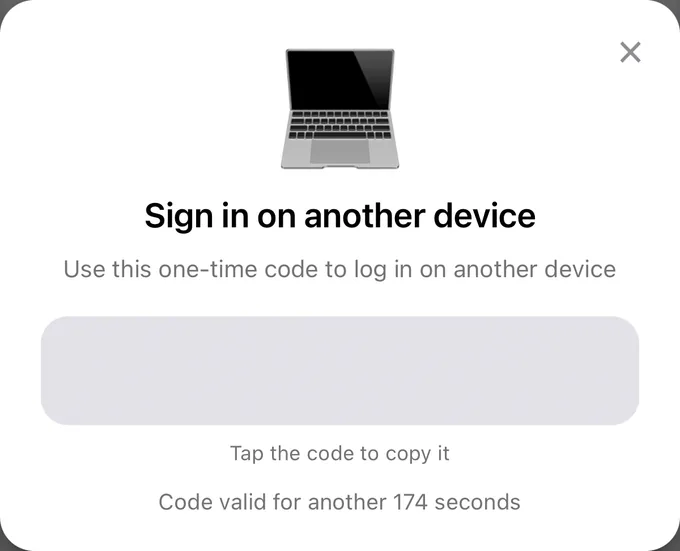
Your child doesn’t need a subscription of their own, since VanyaVPN has no device limit. On your phone, go to Account and tap Sign in on another device. The app shows a one-time code, which you type on the child’s computer under Sign in with code.
-
Turn on Autostart
On Windows it’s in Account → Settings, and from then on VanyaVPN starts along with the computer. On a Mac running the DMG build, it’s Launch at Login, in the menu the app’s icon opens on a right-click.
-
Leave it connected
If a Windows computer gets shut down with the VPN still on, the VPN reconnects by itself after the next boot.
Roblox’s parental controls and age limits work as before, and a VPN doesn’t get around them. It also won’t raise the frame rate on a weak computer.
Other questions
Can Roblox be played through the VPN on a phone?
Yes, iPhone and Android work the same way, and VPN for your phone walks you through installing the app. Connect first, open Roblox second.
Which country should I pick?
Any country outside Russia. The closer it is to you, the shorter the route to the game’s servers.
If your child plays Brawl Stars as well, there’s a separate phone guide, VPN for Brawl Stars.